I want a timer to fire to allow the slow adding of files from a LARGE folder to a listbox. However, when I run the code, I never get my timer firing. Here is the code that calls the timer:
if theFolderIDropped.Count >=500 then

//we will have a routine here to go through
//each run

// for testing only
System.DebugLog “More than 500 Pictures”

// run the timer so we can SLOWLY add files
timerLargeNumberOfFiles.Enabled = TRUE

else

// for testing only
System.DebugLog “LESS than 500 pictures”

Var fileInTheFolder As FolderItem = theFolderIDropped.ChildAt(theNumberOfFiles)

If fileInTheFolder <> Nil Then

windowMyDuplicatePictureFinder.listboxFilesInFolder.AddRow ""
windowMyDuplicatePictureFinder.listboxFilesInFolder.CellTextAt(windowMyDuplicatePictureFinder.listboxFilesInFolder.LastAddedRowIndex,0) = fileInTheFolder.Name

windowMyDuplicatePictureFinder.progressBarFileLoading.Value = windowMyDuplicatePictureFinder.progressBarFileLoading.Value + 1

else

End If

end if
And this is my timer. It is set to fire every 10 seconds, Multiple times. It is disabled when the program starts, but when you find you have a whack of files, it is enabled. Here is that code, under the “Action” event… And yes I know all it does now is give a log.
// for testing only, just add a row. System.DebugLog “Timer fired”
// run the timer so we can SLOWLY add files
timerLargeNumberOfFiles.Enabled = TRUE
This doesn’t completely start a timer. You need to change the RunMode. For predictability, I also always Reset a Timer when I do so.
Try this
// run the timer so we can SLOWLY add files
timerLargeNumberOfFiles.Enabled = TRUE
timerLargeNumberOfFiles.RunMode = Timer.RunModes.Multiple
timerLargeNumberOfFiles.Reset
But I NEVER see the timer fire. I have reduced the time to 1 second (1000 ms) and I never see the System.DebugLog I have in there fire… even one time.
And I am sorry for acting stupid, but when I go Enable, the timer should act every time period, right? Even if I hit the timer enable event more than one time?
Regards
Update: I went for giggles and enabled when the program started - just for testing - the timer when the program starts.
The RunMode needs to be something other than Off. In the past the Enabled property did nothing at all, at some point it became required that Timers must be Enabled to fire. Setting enabled, then the run mode, then resetting should cause the Timer to fire. Setting just enabled does not guarantee that.
If you post a sample project demonstrating the setup you have that’s not working, we may be able to find the problem.
Update: Struck-out the historically inaccurate statement, I checked the 2019r1.1 docs.
For me, the enabled is for a situation where a user has a large number of files to fill the listbox. Since it takes a lot of processor time (in my case think 15000 plus items) the user might think it is not responding. So I want to pass the listbox filling to a timer that works in batches.
As for reset, it resets the state, from what I understand.
Enabled controls whether or not the Run event can occur. I don’t recall it resetting the timer, but according the the new documentation, it does.
Reset will set the currently passed time back to zero, which I do for consistency and predictability. I just like my code to be self-documenting. Changing the RunMode resets the timer, but the extra line in my code saves me from having to open the documentation, which is now a whole online thing.
It’s important to understand the fundamental design of the Xojo event model - while processing one event in the main thread, other events are not processed, and will be held until the event in the main thread has finished.
So something like this will never work:
Window1.Pushbutton1.Pressed
  Timer1.runMode = Timer.Runmodes.Single
  for i = 1 to 100000
     ... do something ...
  next
The timer will never fire during this entire event handler.
The workaround as @Kem_Tekinay mentions is to use a Thread.
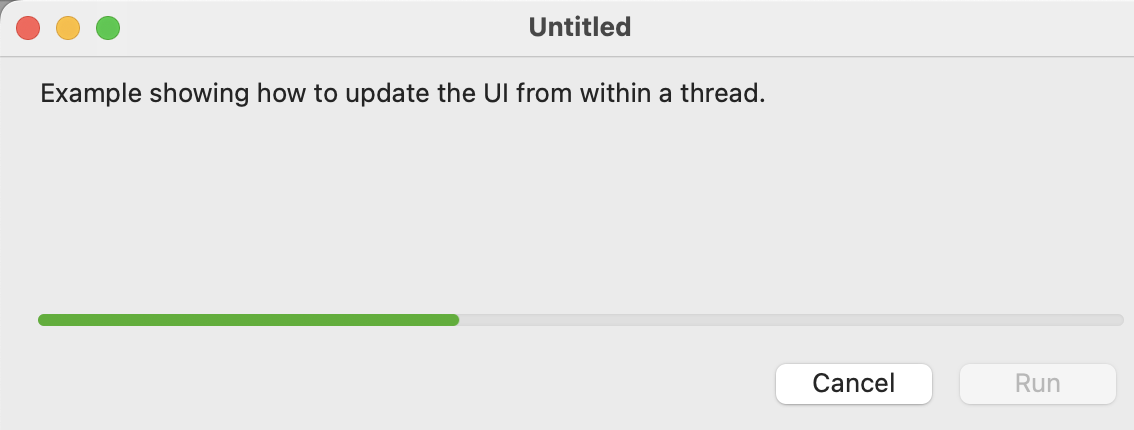
Thread with a Run event (which does nothing interesting)
ProgressBar which is updated from within the thread
Run and Cancel buttons which start and stop the thread.
Using this technique, you would put your code in side Thread1.Run - no timers are actually needed since the code uses the Thread.UserInterfaceUpdate method event which always fires on the main thread.
I will take a look at this. I was thinking of using a thread, but since I’m not sure what I am doing when I use them, even with the youtube and examples, I have been avoiding it.
I think you’ve overcomplicated your code. A solution that is good for a large number of files should be a good solution for a small number of files too. You want to reduce the number of special cases, and you don’t have enough information to decide whether or not a particular cutoff is good for the user. Computer A might process faster than Computer B.
Instead, I would simply drop the files into an array, execute the timer often - I’d start with 250ms - and move a chunk from the array into the listbox. Size your chunk depending on the amount of work AddFileToList needs to do. If it’s nothing more than adding to a listbox, you should have zero trouble working on 100 files per chunk. Only thing I can’t really tell is if you want this to be recursive or not, so I’ll assume not.
Code would look something like this:
Event DropObject(Obj As DragItem, Action As DragItem.Types)
  // Your DragItem can have multiple parts, such as multiple dragged files.
  Do
    If Obj.FolderItemAvailable = False Then
      Continue
    End If

    Self.ProcessDroppedFile(Obj.FolderItem)
  Loop Until Obj.NextItem = False
End Event

Sub ProcessDroppedFile(File As FolderItem)
  If Self.ListUpdaterTimer.RunMode <> Timer.RunModes.Multiple Then
    Self.ListUpdaterTimer.RunMode = Timer.RunModes.Multiple
  End If

  If File.IsFolder = False Then
    Self.mPendingFiles.Add(File)
    Return
  End If

  For Each Child As FolderItem In File.Children
    Self.mPendingFiles.Add(Child)
  Next
End Sub

Event ListUpdaterTimer_Action()
  If Self.mPendingFiles.Count = 0 Then
    Me.RunMode = Timer.RunModes.Off
    Return
  End If

  Var NumListed As Integer
  While Self.mPendingFiles.Count > 0 And NumListed <= 100
    Self.AddFileToList(Self.mPendingFiles(0))
    Self.mPendingFiles.RemoveAt(0)
    NumListed = NumListed + 1
  Wend
End Event
I wrote this all in-forum, so there may be minor bugs, but the concept is there. I’d prefer to use a thread if AddFileToList is doing more than just pushing the file into a ListBox, but it’s a bit more complex and there’s too many things I don’t know about the code. But the concept would be similar: the thread works on the pending files and pushes updates to the UI with UserInterfaceUpdate.
A personal design choice I make is to stash the FolderItems from the DropObject in a property then belay processing them with a Timer. The Xojo app and Finder both lock up until the end of the DropObject event, so I want to gather the references only and exit the event as soon as possible.
FolderItem actions are main-thread blocking, so if you process in a Thread I suggest you add your own additional yielding to make the UI “less stiff”. You can see what I mean in my app Plugins Pro if you activate a large number of plugins at once. It’s not as fluid as one would hope because of the main-thread blocking nature.
We do have new tools since I built Plugins Pro. You could use a Worker or Preemptive Thread and either option should really free up the UI and make it fluid again. I do think it would be easier to start with a basic Cooperative Thread and transition once you are ready. Both technologies are newer than Plugins Pro so I don’t have much advice on them for you. I do recall Kem being very excited about Preemptive Threads, so perhaps he can advise you there
I’m going to put my 2 cents in here… don’t just loop over the contents of the dropped folder. Use an iterator. They are so much faster that this stuff you’re doing may be overkill.
For each file as folderitem in droppedfolder.children
… process file…
Next
The way I ended up doing it in my app (which I’ve tested up to drops of 10000 files) is this:
Start processing the files in a Thread (silently with no UI)
if the elapsed time is greater than about 1-2 seconds, and there are a non-trivial number of files left to go, then show the UI - which includes a progress bar and a Cancel button
Depending on the circumstances, the UI may be a Modal Dialog, or just a few controls on the window - the difference is whether you want the rest of the app’s UI to be blocked during this operation vs. not.
Modal dialogs are interesting, because they are an exception to the rule: while processing one event in the main thread, other events are not processed.