More details:
The file name is Icon (followed by a Return) and is created by macOS (I ask it to do that): it is a custom icon for the Finder (the Finder use it to replace the default value).
Usually they are Filder custom icons (icon of a standard Finder folder + either a Book, Magazine cover, LP/CD/DVD… cover, a red cross for health documents… (you understand what I mean)
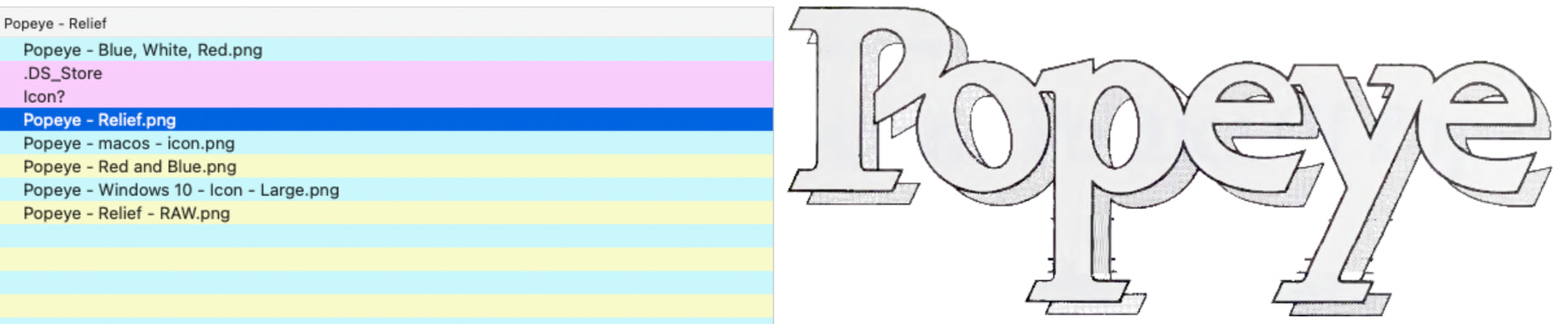
For unknow reasons, sometimes they appears (lost their invisibility) and so I use my hex dump utility (a simple button to set the Visibility - on or OFF - below the screen shot.
If you apply a custom icon to a file, you do still get a hidden resource file that holds the preview bitmap.
Some zipping processes retain these files, some do not.
So if you compress without the resource file, and uncompress elsewhere, there will be no special preview. (This may have nothing to do with your post, but its hard to know what you are asking)
To apply a custom icon in MacOs, I use a monkeybread/ Macos wrapped function, SetIcon
dim img as NSImageMBS

img=new NSImageMBS(p1)

if NSWorkspaceMBS.setIcon(img,f,0) then
To get the icon back, I use IconMBS which is an extension of folderitem
f.IconMBS(50)
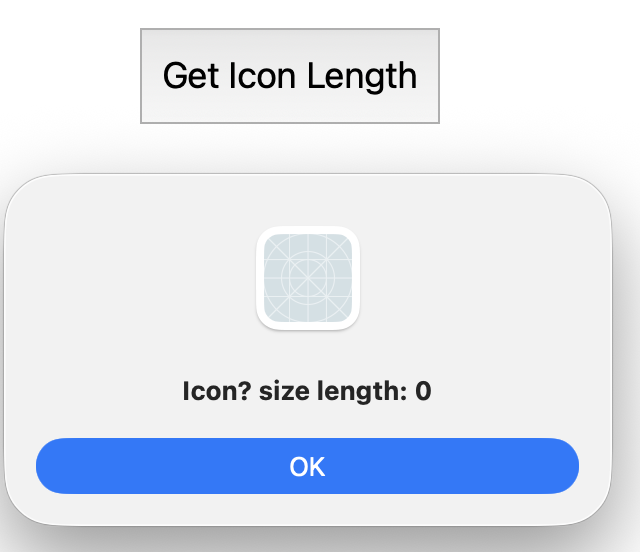
I don’t know for sure how to get the filesize of the resource,
unless it happens to be the length of the file named the same way as yours, but with a _ prefix
Of course, if you do not set a custom icon to a Folder, you will never have one (I think, biut not 100% sure). And since that file is invisible (as I wrote in my orginal post), you have to find a way to see that file.
As you noticed, this kind of file appears when you move a folder to Windows; Windows creates them, I think they are links (alias in macOS “language”) because they are not images / I do not checked what is inside these files to be sure, but their length says the contents is not the image we will find in Myfile.jpg.
I have found 93 files who starts with an underscore (_) character including some from Xojo, but these are not related to what you wrote.
This is what I want to do:
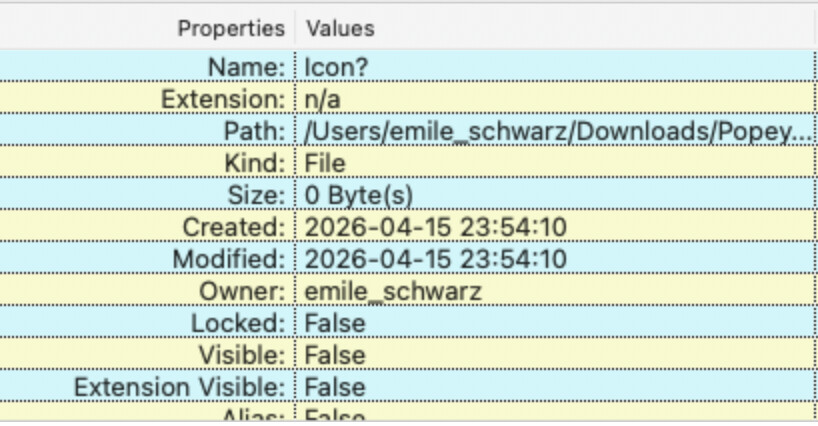
BTW: this is the information window for a File With a Resource Fork holding a (Custom Folder) Icon:
This file have a length: 191,453Bytes and is usually invisible (look at FolderItem.Visible in the Documentation for an example on how to deal with FolderItem.Visible:
Var f As FolderItem = FolderItem.ShowOpenFileDialog("????")

If f.Visible Then
  MessageBox(f.DisplayName)
Else
  MessageBox("The FolderItem is not visible.")
End If
Adding f.Visible = True will display the invisible file in the Finder.
Copy an image, (photo, artwork, screen shot)…
Add a dummy Folder,
set Get Info from the Finder Menu Bar,
Click in the Folder Icon on the top left of the Info Window,
Paste.
And you get both a new icon and the invisible one.
That is if you are curious enough to check what I wrote (and understand me).
If you copy a folder from Mac to a USB stick, they are there. They show up in Windows even if the USB stick is read only. It sees them, where MacOs hides them from you.
their length says the contents is not the image we will find in Myfile.jpg.
They probably hold a small thumbnail image, rather than the entire myfile.jpg, surely?
Your original file might be thousands of pixels in size. Thumbnail previews don’t need to be anywhere near as large. (If it held the same data as the original, it wouldnt need to exist at all.)
Most of this is ‘guesswork’ I confess - I don’t have time to go research it right now.
Resource FORKS have been deprecated for many, many years and not used by any modern software even if the file system still supports them. Apps that store metadata - for example, Finder icons - that would previously have landed in a resource fork instead often use invisible files such as .DS_Store to do so.
So there’s no way to get the size of a resource fork because they simply don’t exist anymore. That’s the answer.
No Eric Williams, I disagree and I gave you a way to check that by yourself IN THE CASE I DOCUMENTED.
Is ther other cases ? (I talk about the Icon+\cr system file) I do not know. Other ways to add an icon to an image file that represent that image still exist (in the past, do not know if this is still the case) and I do not know how to do that (in special meta data ?).
.DS_Store never stored custom icons set in the Finder.
Remember: a Finder Icon is 1024 x 1024 x 32 Bits (32 bits: I think) Icon and so his size is in tune with that.
I hope Michael read that (you too can check what I wrote to be sure you are right - that is not the case, but check and you will know).
I have done my duty, and if you prefer to stay on your position, it is your choice.
BTW: if you can prove that I am wrong, feel free to explain how I am able to check I am really wrong.
For the record, I use a MacBookPro 13" m1. So I run Tahoe ARM not a macOS Wintel Version.
Just in case, I add the code below to a test project and here’s the answer:
It is true that macOS to this day uses resource forks in a few places even though Apple has tried to make it appear they were gone for good. I’ve always had a soft spot for resource forks and was sad when Apple decided to do without (many years ago) but this appears to be a case of ‘Do as I say, not do as I do’ – despite resource forks being officially declared extinct they are still in active use.
A quick search revealed that for folders, the Finder stores custom icons as data in an extended attribute attached to that Icon^M file. You can see thusly:
Erics-MacBook-Pro:folder with custom icnon eric.w$ ls -l@

total 1832

-rw-r--r--@ 1 eric.w  staff  0 Apr 26 15:51 Icon?
	com.apple.FinderInfo	32
	com.apple.ResourceFork	937348
Yes, the data is keyed as “ResourceFork” and might even be structured in a similar way but it is NOT stored in a fork. It is stored as an extended attribute, which is attached to the file but not part of its data - that’s why you don’t see it in any of the conventional Folderitem.Length methods. You can see this data by doing this:
I’m using the ‘x’ option to get the data as hex - otherwise it doesn’t show due to all the 0 characters in there.
There appears to be no reason the com.apple.ResourceFork data couldn’t be attached to the folder directly; folders and even symbolic links can accept extended attributes. My hunch is that by stuffing the data into the Icon^M file, it maintains compatibility with older MacOS systems and possibly makes moving files between platforms easier.
It may be worth to mention that the extended attribute “com.apple.ResourceFork” is the “new” way to store resource forks. The separate data stream that used to exist has been replaced by this extended attribute.
I can’t say whether the current OS still supports alternate data streams for files on APFS or HFS+, though…
You can use OpenAsResStream in LargeBinaryStreamMBS class to open the resource fork as binary data and read it (or ResStreamMBS class). But to actually use resources, you’d use ResourceForkMBS class instead.