// set font
call pdf.SetFont "Helvetica", 0, 12.0, true, pdf.kcpUnicode
dim y as Double = 50

text = "你好,世界"
call pdf.WriteFTextEx(50, y, 200, -1, pdf.ktaLeft, text)
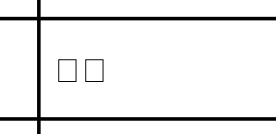
I get an error that a few glyphs are not in the Helvetica font.
Then I switch to Arial Unicode and it works:
// set font
call pdf.SetFont "Arial Unicode MS", 0, 12.0, true, pdf.kcpUnicode
dim y as Double = 50

text = "你好,世界"
call pdf.WriteFTextEx(50, y, 200, -1, pdf.ktaLeft, text)
You need to use a font that has support for those glyphs. Your average font won’t - Times New Roman, for example, is explicitly a font for Latin scripts and won’t have any support for Asian scripts. The fonts you should be looking at will often say Unicode in their names: Arial Unicode is probably the most widely distributed one although you’ll also find Lucida Grande Unicode on the Mac, as it was the universal system font a few OS versions back and needed to support a very wide character set.
If you are looking for candidate fonts that have very wide glyph coverage for many languages, sort the list on this page by Character Count in descending order:
When you draw text in Xojo, the operating system text APIs make sure that the font you have chosen contains the glyphs required to draw the text. If any of the glyphs are missing the operating system automatically switches to the required font(s). This is called font fallback.
Unfortunately, PDF doesn’t support font fallback which means you are responsible for making sure that the font you have chosen contains the glyphs.
It should be possible to write your own basic font fallback function by testing each Unicode code point in your text using the DynaPDF GetGlyphIndex function and if a glyph doesn’t exist, you then start checking other fonts for it. The obvious question is which fonts you prioritise rather than testing each font. One solution is to analyse your fonts to see which Unicode script ranges they support (tables are available on the Unicode site), determine which script your offending character is in using the same tables and then prioritise the fonts with matching scripts.
Luckily, DynaPDF has built their own font fallback solution. If you check the Complex Text / Font Substitution sections of their documentation it should tell you everything you need.
It is worth pointing out that the fonts chosen will more than likely be different to what the operating system chooses so if you are trying to 100% match the styling / layout of text on-screen then you will probably be out of luck.