Hi,
I wanted to explore, failed with xojo, but win with sqlite.org (sorry, no link).
So, with a MacBook Pro 13" m1 I have done this:
The .csv file (zipped):
Mickey_Daily_Strips_List.csv.zip (1.6 KB)
The first entries looks like that:
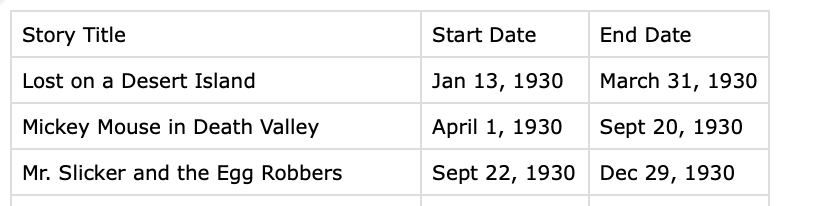
Dezip the .csv file and place it in the home folder of your boot disk:

Then fire the Terminal application:
Located in Applications → Utilities
- Create a .csv file (with header) if you do not take mine
- Fire the Terminal, if not already done
- Type (or Copy/Paste):
sqlite3 Mickey_Mouse.db -cmd ".mode csv" ".import Mickey_Daily_Strips_List.csv Mickey_Daily"
And look at the result:

Inside the file:
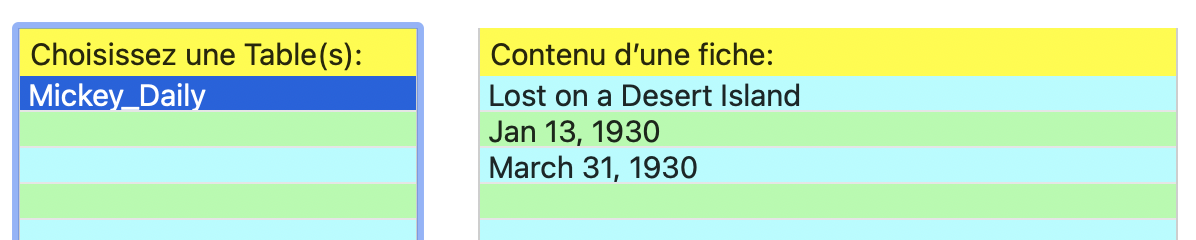
On the left, you can see the TABLE,
on the right, the First Record
Extract from the db file (using an Hex Dump application):
CREATE TABLE “Mickey_Daily”(
“Story Title” TEXT, “Start Date” TEXT, “End Date” TEXT)
and the .csv data are there.
All you nedd to do now is the Xojo project with the interface and add code to Add, Read, Delete, Modify commands…
From the .csv file, here’s the two first records as text:
Story Title,Start Date,End Date
Lost on a Desert Island,“Jan 13, 1930”,“March 31, 1930”
The dates are between quotes because of the comma. The original .csv is incomplete (miss the number of strips), but works fine for this demonstration.
PS: the idea (for me) was to see the .csv import / export feature of SQLite.
PPS: I forgot to add that a TABLE definition can be added to the command line, but since I have the headers in the .csv file, I let sqlite deal with that.