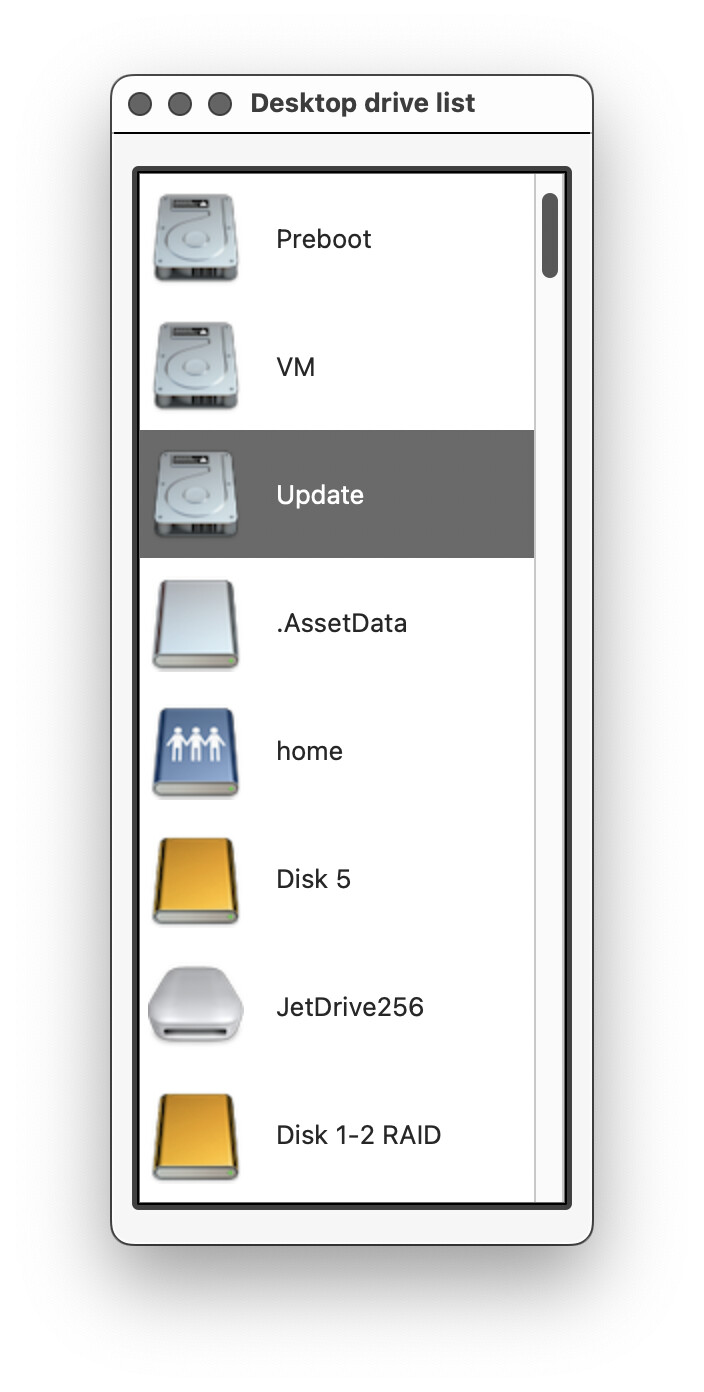
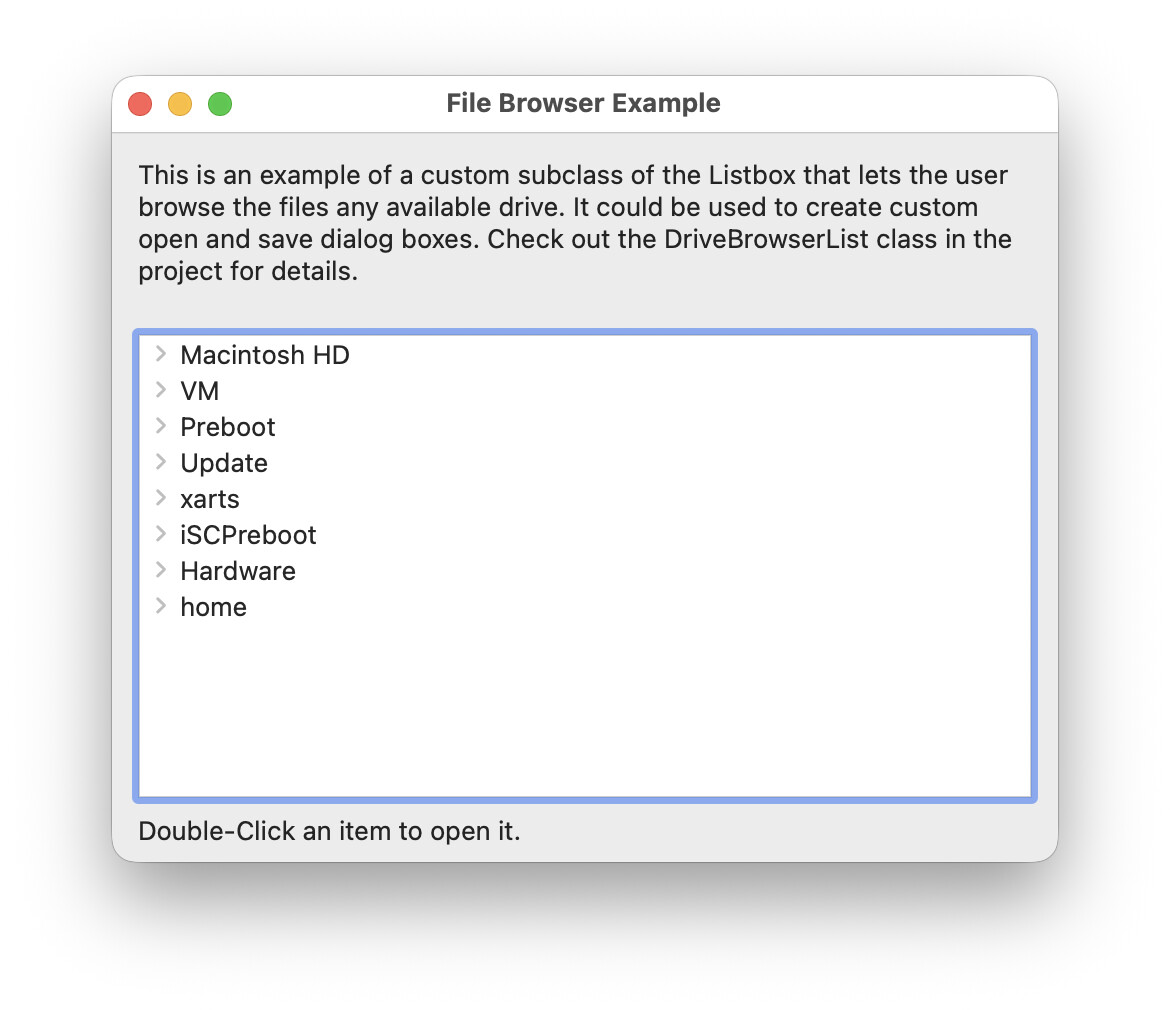
I’m creating a utility application based on one of the Xojo example projects (Platforms>Desktop>Listbox>FileBrowser). It works fairly well and shows a list of all mounted drives (see image). However it shows a number of volumes that I don’t want to display (VM, Preboot, etc.) and it shows all of my Time machine backups in the same list. Is there a way that I can constrain the list to just the volumes that I want to show (e.g. local disks, network drives and removable disks)? I’m using FolderItem.DriveAt(i) to grab the volumes but the options for using it seem limited.
That is the method that I have been using to get the volumes. The point that I would like to understand is whether there is a way to include only the types of volume that I want, local, removable and network volumes, and exclude any others (Preboot, VM, Update, and so on). If there is a way to identify a volume type that might do what I want. There is a MBS plugin for Windows that looks like this: Monkeybread Xojo plugin - Win: GetDriveTypeMBS but not a Mac version from what I can see.
There’s a way, using the MBS plugins, to check whether a volume would appear in a Finder window or open/save dialog. I’m not sure right now which is the method to retrieve this (I’ll look for that later if you can’t find it), but you can search for the “NoBrowse” key (possibly in the VolumeInformationMBS class).
Thanks for the pointers, everyone. I have now worked out how to do this in a fairly clunky way. As usual, it has raised another question which I will post separately.
I used the iconMBS plugin. Here is the relevant code:
For i As Integer = 0 To FolderItem.DriveCount - 1
f = FolderItem.DriveAt(i)
if f.name = “Preboot” or f.name = “VM” or f.name = “Update” or f.name = “home” or f.name.BeginsWith(“.”) or f.name.BeginsWith(“2025”) then
// do nothing - I don’t want to display these volumes
else
me.AddRow(“”,f.name)
me.RowImageAt(me.LastAddedRowIndex) = f.IconMBS(48)
// capture the drive information so that I can launch it later
Var currentFolder As FolderItem = New FolderItem(“”, FolderItem.PathModes.Native)
// Add it to the row tag. See DoublePressed and KeyDown events to see how to use it
me.RowTagAt(me.LastAddedRowIndex) = f.SaveInfo(currentFolder)
end if
Next
To make/keep it x-platform compatible, maybe the length of the memory block can help? Because on Windows 11 i see 60 bytes for local harddrives and 40 bytes for network drives. But i do not know how reliable this is.
I’m sorry that I led you to look at the MBS plugin while in fact the code I was thinking about doesn’t need it. I’ve finally found the function in my archives:
Public Function VolumeIsBrowsable(Extends target as FolderItem) As Boolean
  Soft Declare Function NSClassFromString Lib "AppKit" (classname As CFStringRef) As ptr
  Soft Declare Function fileURLWithPathIsDirectory Lib "Foundation" Selector "fileURLWithPath:isDirectory:" (NSURLClass As Ptr,path As CFStringRef,directory As Boolean) As Ptr
  Soft Declare Function getResourceValue Lib "Foundation" Selector "getResourceValue:forKey:error:" (URLRef As Ptr,ByRef value As Ptr,key As CFStringRef,ByRef error As Ptr) As Boolean
  Soft Declare Function boolValue Lib "Foundation" Selector "boolValue" (ref As Ptr) As Boolean // for converting NSNumber boolean to Xojo

  Var NSURLClass As Ptr=NSClassFromString("NSURL")
  Var nativePath As String=target.nativePath
  Var myURL As Ptr=fileURLWithPathIsDirectory(NSURLClass,nativePath,target.directory)

  Var error As ptr
  Var result As ptr
  If Not GetResourceValue(myURL,result,"NSURLVolumeIsBrowsableKey",error) Then
    System.DebugLog "Can't check for browsable key!"
    Return False
  End

  Return boolValue(result)
End Function
This function tells whether a given volume is shown in the Finder and open/save/select folder dialogs.