Using innosetup

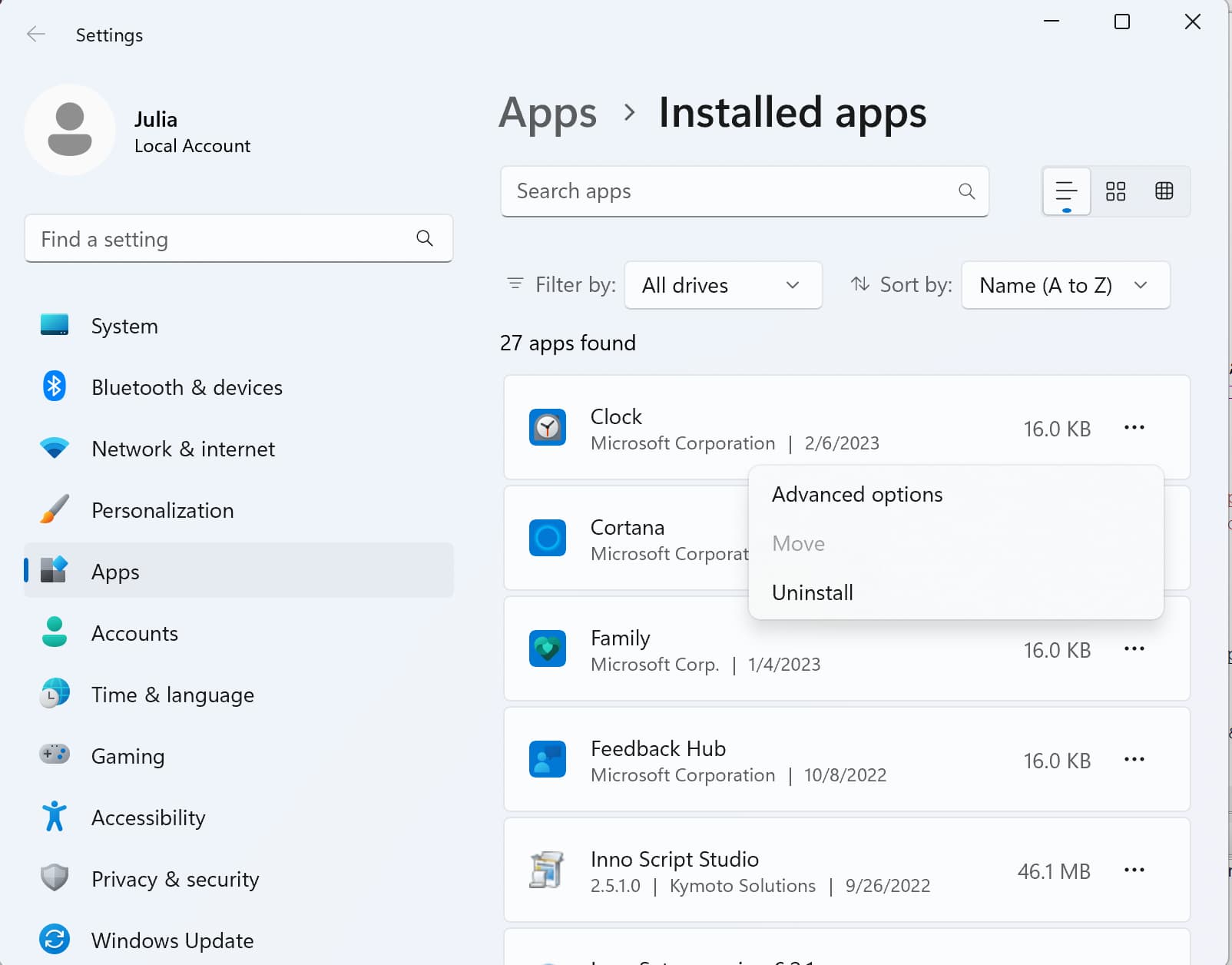
Users know to type “Uninstall” in the search bar, which brings up the “Add or Remove Programs” Settings window. There they can select any app for deinstallation.

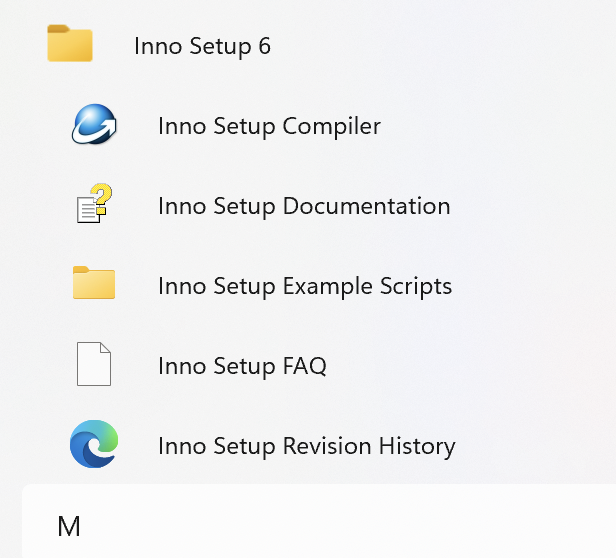
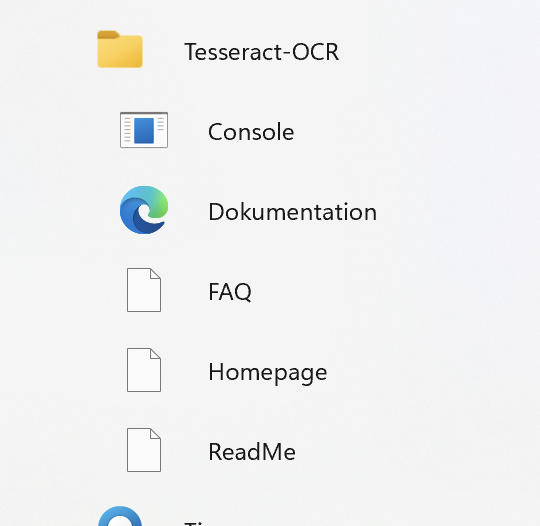
Honestly I don’t know that I’ve ever seen an “Uninstall” Start Menu item for any application. It’s supposed to be done through the Control Panel aka Settings.

1 Like

Yup. This is the way.
Windows 10 even already offers ‘uninstall’ as a pop menu item if you right click on an app’s icon in the Start menu anyway…

But I do recall a lot of Windows 3.1 / W95 apps used to have an uninstall in the Start Menu

1 Like

This got me curious and my app does include a folder and uninstaller in the start menu. I hadn’t noticed. I think I’ll change that.

1 Like

Suppose the user has got already my “myApp” app in Program Files and without unistaling it she/he installs a new or the same version of “myApp”.
I saw that if “myApp” is not running, Setup replaces all the files of the previous (or same) version, but if “myApp” is running, then Setup

  1. shows a warning (“The following applications applications are using files that need to updated by Setup” etc.)
  2. the name of my app (and no other app) is shown in a listbox
  3. The “Automatically close the applications” radio button is selected

User clicks “Next”, and a new window pops up saying: Closing applications.
After a while a new warning shows up saying that Setup was unable to close all applications, etc. (yet I can see that “myApp” has been closed).
It offers three choices (Try again; Ignore the error and continue; Cancel Installation).

Clicking “Try again” the new files are installed and Setup says “myApp” will be restarted; yet it does not get restarted (but this does not bother me).

Is this the expected behavior, or is there any code to add in the Innosetup-script to block the installation and tell the user to first uninstall or close the app she/he wants to install?
Suggestion welcome. Thanks.

I wouldn’t call it expected, but for me, it’s unsurprising. I have never had any luck getting the installer to terminate the app. My solution is using a mutex to make sure the two cannot run at the same time. But this comes with some hoops to jump through. So I’ll point you to my script and guide you as best as I can. Beacon/Setup.iss at master · thommcgrath/Beacon · GitHub

The important keys are AppMutex and SetupMutex in the [Setup] section. The installer will check the status of AppMutex and will not continue if something is already holding the mutex. SetupMutex is similar, but the installer holds this mutex, and does not care if something else is already holding it. So you need both to allow your app and your installer to check on each other.

You’ll also need to use WindowsMutexMBS instead of Xojo’s Mutex class, because Xojo’s mutex only appears compatible with other Xojo apps. I’m not sure the technical reasons for this, but I do know Xojo’s built-in mutex won’t work as-is.

When your app is opening, check the setup mutex:

Var SetupMutex As New WindowsMutexMBS
SetupMutex.Create("com.my.app.installer")
If SetupMutex.Lasterror <> 0 Or SetupMutex.TryLock = False Then
  MessageBox("The installer is running")
  Quit
  Return
End If

It is not necessary to retain the SetupMutex object. Next, get your app’s mutex

Static AppMutex As New WindowsMutexMBS
AppMutex.Create("com.my.app")
If AppMutex.LastError <> 0 Or AppMutex.TryLock = False Then
  MessageBox("Another instance is running")
  Quit
  Return
End If

If you already have mutex logic of your app, just adapt it to use the WindowsMutexMBS class instead. Also make sure to release the mutex when your app is closing, though this will happen automatically. It’s just good housekeeping.

Done? Well… kind of. Technically, this will work. Practically, your SetupMutex check will fail if your installer launches your app after the install finishes. That’s less than ideal. But there’s a solution to that too.

In my setup script (line 127 at the time of this writing) is

Filename: "{app}\{#MyAppExeName}"; Parameters: "/NOSETUPCHECK"; Description: "{cm:LaunchProgram,{#StringChange(MyAppName, '&', '&&')}}"; Check: not CmdLineParamExists('/NOLAUNCH'); Flags: nowait postinstall

The meat you’re looking for here is Parameters: "/NOSETUPCHECK". This will get passed to the app, so you’ll need to detect it and not check your SetupMutex;

Var CommandLine As String = System.CommandLine
Var SkipSetupCheck As Boolean = CommandLine.EndsWith("/NOSETUPCHECK") Or CommandLine.IndexOf(" /NOSETUPCHECK ") > -1

If SkipSetupCheck = False Then
  Var SetupMutex As New WindowsMutexMBS
  SetupMutex.Create("com.my.app.installer")
  If SetupMutex.Lasterror <> 0 Or SetupMutex.TryLock = False Then
    MessageBox("The installer is running")
    Quit
    Return
  End If
End If

And of course, wrap all this Xojo code in #if TargetWindows as needed.
1 Like

Well, to say impressive job is the least. Thank you.

Just a question related to the Beacon.Setup: I see that you use
[Icons]
Name: “{autoprograms}{#MyAppName}”; Filename: “{app}{#MyAppExeName}”

and that I like because in the Start list there is no more a folder containing the app.
But I also notice that:
[Tasks]
Name: “desktopicon”; Description: “{cm:CreateDesktopIcon}”; GroupDescription: “{cm:AdditionalIcons}”; Flags: unchecked
Name: “quicklaunchicon”; Description: “{cm:CreateQuickLaunchIcon}”; GroupDescription: “{cm:AdditionalIcons}”; Flags: unchecked

(something you do not use in Beacon.Setup) even if inserted in the .iss file work no more; i.e. no shortcut file is created on the desktop.
It is night here; tomorrow I’ll try and see what happens replacing autoprograms with {commondesktop} or adding it. Something like:
[Icons]
Name: “{autoprograms}{#MyAppName}”; Filename: “{app}{#MyAppExeName}”
Name: “{commondesktop}{#MyAppName}”; Filename: “{app}{#MyAppExeName}”

Regards.

I reported the bug where InnoSetup wasn’t able to terminate any Xojo app and you know what they did? They fixed it for the Xojo IDE installer only, not the framework.

#58292 - Xojo doesn’t respond to WM_ENDSESSION causing Innosetup to be unable to close open Xojo apps (closed)

You need to pair the [Icons] and [Tasks] sections: Inno Setup Help

So although I haven’t tested it, I’d imagine something like this would work:

[Icons]
Name: "{autoprograms}\{#MyAppName}"; Filename: "{app}\{#MyAppExeName}"; Tasks: startmenuicon

[Tasks]
Name: startmenuicon; Description: "Create start menu icon"; Flags: unchecked

I don’t know the shortcut for adding to quick launch though.

1 Like

Since I was actually trying to get a QuickLaunch icon on the desktop, these are the attempts I made:

  1. No [Tasks], only [Icons]
    [Icons]
    Name: “{autoprograms}{#MyAppName}”; Filename: “{app}{#MyAppExeName}”
    If the user wants a quicklaunch icon: right-clicking the app in the startlist, selecting “more” > “Open file location” and right-clicking the selected app user selects “Create shortcut”, specifying to create it on the desktop.

  2. [Tasks] and [Icons]
    [Tasks]
    Name: desktopicon; Description: “Create QuickLaunch Icon”; Flags: unchecked
    [Icons]
    Name: “{commondesktop}\Psalms and Ragas”; Filename: “{app}\Psalms and Ragas.exe”; WorkingDir: “{app}”; Tasks: desktopicon
    The quickLaunch icon is created but (obviously) the app is not added in the Start-list of apps. So this is not a viable option.

  3. [Tasks] and [Icons]
    [Tasks]
    Name: desktopicon; Description: “Create QuickLaunch Icon”; Flags: unchecked
    [Icons]
    Name: “{autoprograms}\Psalms and Ragas”; Filename: “{app}\Psalms and Ragas.exe”; WorkingDir: “{app}”; Tasks: desktopicon
    but the compiler does not like it. I guess because ‘desktop’ should be added as a parameter. But I did not find the way to add it.

4.[Tasks] and [Icons]
[Tasks]
Name: desktopicon; Description: “Create QuickLaunch Icon”; Flags: unchecked
[Icons]
Name: “{autoprograms}\Psalms and Ragas”; Filename: “{app}\Psalms and Ragas.exe”
Name: “{commondesktop}\Psalms and Ragas”; Filename: “{app}\Psalms and Ragas.exe”; WorkingDir: “{app}”; Tasks: desktopicon
This option compiles all right and it shows at once the quicklaunch icon.

Therefore I’m left with option [1] and option [4].
Now, if it were for me, I’d hold fast to choise [1] which is your original solution; and if users want the quicklaunch icon, let them create it as described above.

But since I’m not a Windows-user I do not know if most of the users expect to get the quicklaunch icon at once upon installation. If this were true, then option [4] would be a viable solution.

Therefore, although I’d opt for option [1], I’d appreciate others’ point of view on the matter.
Thank you.

You’re closest with #2. Just add another entry to [Icons] for the start menu icon.

So I tried adding IconFilename: “{app}/psalmsSetUpIconWin” and whatever it passed through my mind, but with no success. Now brain burned out!
Anyway, thanks for your valueable inputs. Best regards.

Try this, it should always create an shortcut in the start menu, and give the option to create a desktop icon.

[Icons]
Name: "{autoprograms}\{#MyAppName}"; Filename: "{app}\{#MyAppExeName}"
Name: "{autodesktop}\{#MyAppName}"; Filename: "{app}\{#MyAppExeName}"; Tasks: desktopicon

[Tasks]
Name: "desktopicon"; Description: "Create Desktop Icon"; Flags: unchecked

My updater system downloads the installer file, then presents the user with the option to “Quit and Launch Installer”. When they click the button, the installer is launched and the app quits. The installer overwrites the old installation.

In FileReceived event of the socket that downloads the installer:

Select Case httpStatus
Case 404 
  MsgBox "Upgrade file not found on the server."
  
Case 200 
  
  if file <> nil then
    If  file.Exists then
      b=d.ShowModal    //display the dialog
      
      Select Case b //determine which button was pressed.
      Case d.ActionButton //user pressed Quit
        file.Launch // Unzip on Mac or launch installer on Windows
        Quit
      Case d.AlternateActionButton
        
      End Select
    Else
      MessageBox "Downloaded file doesn't exist. Try a different download location."
    end
  Else
    MessageBox "Downloaded file is nil. Try a different download location."
  End
Case else
  MsgBox "An HTTP error occurred while retrieving the upgrade file."+EndOfLine+ _
  "HTTP status code "+str(UpdateSocket.HTTPStatusCode)
end Select

Yes, it creates the shortcut in the start menu and givues the option to create the desktop icon.
Very kind of you. Thanks.

Good. So I have confirmation that a new installation overwrites the old one.

And thank you for the the code. Very handy. I may use it myself.

Here I am again!
In my unphatomable wisdom in my older .iss scripts I had this piece of code:

[Setup]
AppId={{AF8A018F-2DB4-4932-91B6-4A644DF4C694}
AppName=Psalms and Ragas
AppVerName=Psalms and Ragas 2.2.9
DefaultDirName={autopf}\Psalms and Ragas 2.2.9
DefaultGroupName=Psalms and Ragas 2.2.9

Now I changed DefaultDirName and DefaultGroupName into:
DefaultDirName={autopf}\Psalms and Ragas
DefaultGroupName=Psalms and Ragas

The script works all right, but in Program Files the name of the directory remains
Psalms and Ragas 2.2.9, while I’d like it to be “Psalms and Ragas” only.

I tried several ways suggested in StackOverflow, but at the end it seems that I can get “Psalms and Ragas” only if I run the installer after uninstalling Psalms and Ragas 2.2.9 in Settings > Apps.
So at present my solution would be this: let users install the new version and when the app gets launched, in the open/opening event of app execute this code:

#if TargetWindows then
dim f as FolderItem = app.ExecutableFile.Parent
if instr(f.name, “1”) > 0 or instr(f.name, “2”) > 0 then
MsgBox kInstallAgain //because f.name = “Psalms and Ragas” does not work
quit
end if
#endif

MsgBox kInstallAgain tells user to uninstall the app in Settings > Apps and to run again the installer. In order not to put users to this cumbersome effort, is there a way through Innosetup or by declares to achieve my aim?

In the .iss file, between the {Setup] and the [Files] sections I tried inserting
[UninstallDelete]
Type: filesandordirs; Name: “{app}”
but after running the installer the folder name in Program Files remains Psalms and Ragas 2.2.9, even changing the AppVerName to Psalms and Ragas 2.3.1 or whatever.
Could it be that to have [UninstallDelete] work some other instruction is needed? I do not know.

That’s why I thought that if the folder name cannot be changed through the installer, then it could may be changed through declares in the open event of app:
#if TargetWindows then
dim f as FolderItem = app.ExecutableFile.Parent
if instr(f.name, “1”) > 0 or instr(f.name, “2”) > 0 then
declare…
end if
#endif

Any idea how to solve the puzzle? Thanks.

I’ve never used “AppVerName”.

AppName={#MyAppName}
AppVersion={#MyAppVersion}
AppPublisher={#MyAppPublisher}
DefaultDirName={sd}\Application Data{#MyAppName}
DefaultGroupName=whateveryouwant
OutputBaseFilename={#MyAppName} {#MyAppVersion} Installer

Even applying your suggestions, after installation, in Program Files, the name still remains "Psalms and Ragas 2.2.9 (even increasing the appVersion).
Thank you.

I was going to suggest Flags: ignoreversion but I see from post #1 that you have that set already

I could be wrong, but I thought if you used the same App ID, the idea was that the install would put your new version into the same folder as the previous one used by default - any different one you supply here will be used as a default folder for a brand new install.

So if your new install wants a new folder, maybe you need a new AppID, plus a possible ‘delete the old folder’ setting in the PrepareToInstall section
(But some people might want the old one left there for a while, in case of bugs… would it cause trouble if it remained?)

I’ve seen people query the registry for the commands to run the uninstaller for the previous version, and run that silently before you begin, too.

I too have never used AppVerName.
I do get a version number into the install, which can be examined in the installer properties, using
VersionInfoVersion=